Last week we showed you the GForge CLI and MCP integration. This week: the wiki. Since June, it’s picked up a real list of upgrades — rich rendering, tagging, real search, safer edits — and we’re going to show you all of it with actual screenshots from actual pages, not mockups. We’re also going to show you two real bugs we ran into while putting this post together, because pretending everything is flawless isn’t the point of this series. The point is showing you what’s actually true.
1. Rich rendering: diagrams, math, and code
The wiki’s Markdown editor now renders Mermaid diagrams, KaTeX math notation, and syntax-highlighted code blocks — live, right in the editor, not as a separate export step.

A real diagram, built from the actual design in ticket #65077 (our TOTP two-factor authentication work).
Mermaid diagrams, drawn from real tickets
No separate diagramming tool, no exporting an image and re-uploading it — just a fenced ```mermaid block that renders where you wrote it.

The real addHeadingIds() function from the wiki’s own source — the same function that makes this post’s anchor links work.
Line numbers and line highlighting
Code blocks get line numbers automatically, and a ```language {5} suffix highlights specific lines — useful for calling out exactly which part of a snippet matters.

The copy button only appears on hover, which made it surprisingly annoying to screenshot — we forced the hover state via Chrome DevTools to get a clean shot with no cursor in the frame.
Copy-to-clipboard on every code block
No special syntax needed — every fenced code block gets a copy button automatically.
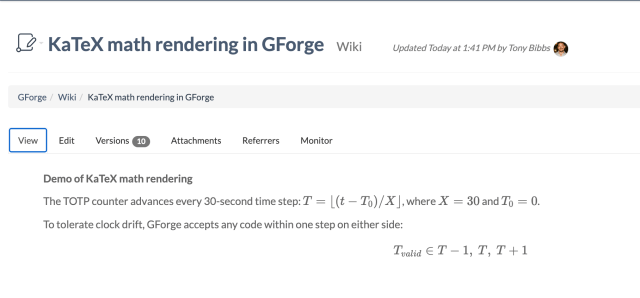
Same TOTP ticket — the actual clock-drift-tolerance formula from the design.
KaTeX math notation
Inline math with single $...$, display-mode with $$...$$.
The bug we found: that display formula is supposed to show a set with curly braces — T ∈ {T-1, T, T+1} — but the braces don’t render, with or without escaping. We tried both \{ \} and \lbrace \rbrace and got byte-identical output missing the braces both times. That’s a real KaTeX rendering bug, not something we did wrong, and it’s getting filed as a real ticket.
2. Organize with tags
Wiki pages can now be tagged, using the same tags widget used everywhere else in GForge. This isn’t a staged example — it’s our own real, already-in-production Server Administration Guide page.

Real tags on our own Server Administration Guide page.
Tags, not just folders
Add tags from either the edit view or the page view. They save automatically, and they feed directly into search.
3. Find anything: the search overhaul
Wiki search now supports real filters — author, date-range, sort order — not just a keyword box.

A real filtered view of our own docs wiki.
Real filters, not just a search box
Filter by author, date range, and sort order — and tag search is folded into full-text search, so a page can turn up because of a tag even if the text on the page never mentions it.
4. Attachments, even on pages you haven’t saved yet
File attachments now live on a dedicated tab, and you can attach files to a brand-new page before you’ve ever clicked Save — they’re staged and attached properly once you do.

Same real Server Administration Guide page, with a real attached file.
Drag, drop, save later
There’s no GForge-specific file size limit — the only cap is your server’s standard upload size setting.
5. Rename a page without breaking every link to it
Renaming a wiki page used to mean chasing down every link that pointed at the old name. Now GForge rewrites inbound links automatically (the ones it already knows about), flags plain-text mentions it can’t safely rewrite, and rolls the whole rename back if anything fails partway through.

The real Rename Wiki Page dialog.
Safe by default
You also won’t get flooded with notifications — renaming a heavily-linked page records one activity entry, not one per page it touched.
6. Never lose an edit to someone else’s save
Two people editing the same page at once used to mean whoever saved last won, silently. Now GForge catches the conflict and gives you a real choice.

A real conflict, caught live.
View what changed, keep editing, or save anyway
This same conflict handling protects tracker-item and personal Notebooks too, since they’re built on the same underlying wiki engine.
7. Bonus: manage wiki pages from your AI agent of choice
Since we’re already covering the wiki, here’s the natural follow-up to last week’s post: your AI agent can read and update real wiki pages directly, via the CLI and MCP server. In fact, we used exactly this to fix a real documentation bug while writing this post — the conflict dialog above uses “View what changed” and “Save Mine Anyway,” but our own docs still said “Show Diff” and “Overwrite.” Here’s the actual fix, live:
gforge mcp session
Doc fixed and verified live.
Where to go from here
Everything in this post is real: real pages, real bugs, real fixes. If you want to read up on any of it in your own time, the full docs are here: next.gforge.com/project/gforge-docs/wiki. And if you’d rather see it live, book 45 minutes with our team and we’ll walk through whatever’s most relevant to you.