From first idea to shipped code — without leaving the ticket.
Most teams stitch together a wiki for analysis, a separate tool for code review, and a tracker for status — then hope the three stay in sync. GForge treats the ticket as the atomic unit of work: the documentation, the commits, and the code review all live on the same ticket, from the first line of a design doc to the moment the fix ships.
Do the thinking where the work already is
Plenty of teams write up analysis and use cases in Confluence, then create tickets once the thinking is done. GForge’s Notebook tab means the thinking never has to leave the ticket.
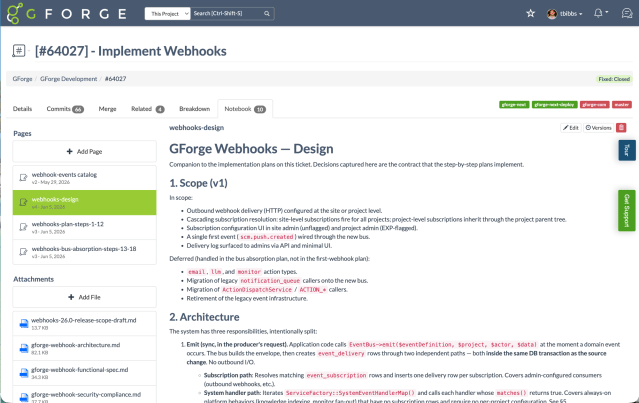
A real design doc — Scope, Architecture, code-level detail — written directly on the ticket, not a separate wiki.
Notebook is a genuine multi-page, versioned space per ticket — not a single comment box. Add as many pages as the work needs, attach real files, and every edit keeps its own version history you can restore later.
This isn’t a mockup: it’s the actual Notebook GForge’s own engineering team used to design a real feature, ten pages deep, with the architecture documents attached right there on the ticket.
And because that analysis lives on the ticket instead of a separate wiki, it’s exactly the context an AI tool needs when you point it at the ticket via GForge CLI + MCP — a full analysis, an implementation plan, a list of acceptance criteria, even a first pass at the code itself. Learn more about GForge’s AI features.
Then break it into sub-tasks — without leaving the ticket
Once the analysis is done, turn it into action. The Breakdown tab treats a ticket with children like a mini-sprint.
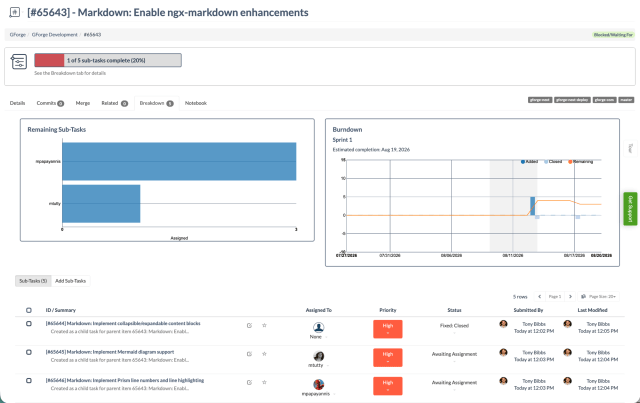
A burndown chart, a remaining-work view, and a real sub-task list — generated automatically, no separate sprint to configure.
Type one sub-task summary per line, and each one inherits the parent ticket’s field values automatically. As they get worked, GForge shows a live burndown and a remaining-work chart grouped by assignee — the same reporting a sprint gets, scoped to just this one ticket’s children.
A progress bar follows the ticket onto every other tab too — “1 of 5 sub-tasks complete,” visible in the header no matter what you’re looking at, so nobody has to go check.
A real workflow engine, not just a status field
Status doesn’t have to be the only thing driving your process — any select-type field can. And every transition between two values is its own configurable rule, not just an open door.

A real transition matrix — nine statuses, every FROM/TO combination individually allowed or blocked.
Pick which field drives the workflow — Status is the default, but any Select, Checkbox, Radio, or Multiselect field works exactly the same way. Every element of that field becomes a row and a column, and every FROM/TO combination is its own switch: allowed or not, nothing implied by default.
That grid isn’t decoration — it’s enforced on every save, whether the change comes from editing the ticket directly, dragging a card on a Planning Board, or the API. A card can’t land somewhere the matrix doesn’t allow.

A real transition, configured on GForge’s own tracker: Accepted → Needs Merge.
Turn on a switch in the matrix and a real editor opens. Moving this ticket from Accepted to Needs Merge, for instance, is restricted to four roles and requires the Work Branch field to be filled in first — nothing else needed, no approval, just the right people and the right data.
Mark a transition as requiring approval instead, and GForge blocks the change server-side until an authorized approval is on record — the save is rejected outright if it’s missing, not just flagged. The same editor can also auto-notify specific roles, auto-reassign the ticket, or auto-update another field the moment the transition happens.
Workflow transitions can trigger more than that, too — attach an AI prompt to any transition and it runs the moment a ticket crosses it. See AI at GForge for how that fits in.
The most atomic unit of work
Documentation lives in the Notebook, covered above. The other two pieces of shipping code — the changes themselves, and the review — live on the same ticket too.
Every Commit, In Full
Each commit tied to the ticket shows its complete diff right there — not just a one-line message, the actual change.
The Ticket Is the PR
Inline comments on the diff, real conflict detection, and — once it looks good — the merge itself, right there on the same tab. No separate PR to open or close. Full depth on Version Control.
Any saved query. Instantly a live Kanban board.

Columns grouped by Sprint, rows grouped by Assignee — both independently configurable, on top of a saved query.
A Planning Board is a Kanban board whose data source is a saved Tracker Query — not a fixed structure bolted onto one project, so any filtered view your team already relies on can become a board. Group columns and rows independently by any field, set how empty groups collapse, and cap how many cards show at once.
Dragging a card isn’t cosmetic — it saves the ticket through the exact same validation every other edit goes through, so a card can’t land somewhere the workflow doesn’t allow. Tracker Item Browse has its own quick Kanban toggle too, for a fast look at whatever you’re currently filtering — Planning Board is for when you want that view saved, shared, and configured your way.
That Sprint grouping isn’t a coincidence — every ticket can be assigned to a sprint as a real field, the same one GForge’s Agile planning tools use for burndown and velocity. See GForge’s Agile features for the full sprint-planning story.
One engine, every kind of work
GForge’s own instance doesn’t just track its own issues on this engine — it runs support and even lead tracking on the same trackers.
Issue Tracking
GForge’s own “GForge Development” tracker lumps New Features, Bugs, Regressions, and Security issues into one tracker, split out by a Ticket Type field — so reporting never has to cross trackers.
Support
Autoclose rules, canned responses, and an email-to-ticket gateway make GForge a real, lightweight help desk — not a JSM or ServiceNow replacement, but plenty for teams whose support needs aren’t that sophisticated yet.
Lead Tracking
Trackers are flexible enough to track sales leads too — same fields, same reporting, same access control as any other tracker.
The fundamentals, done right
Deployment Events
Deploy a revision and GForge automatically finds every open ticket in it and stamps a deployment event, tagged to the environment. See it on CI/CD and the Promotion Model on Version Control.
Quick Kanban, No Setup
Flip Tracker Item Browse into a Kanban view of whatever you’re currently filtering — no saved board required, just a faster look at the same list.
Saved Queries, Reused Everywhere
Save a filter once — by assignee, status, sprint, even parent/child relationships — and reuse it as a report, a Planning Board’s data source, or just a bookmark.
Natural-Language Date Filters
Filter a query’s date range by typing “yesterday” or “last Monday” instead of wrestling a date picker.
An Auto-Populated Standup
Every project gets a live Standup — what each teammate has open, what they’re actively working on, and a shared activity feed you can scope to one project or all of them. Every user also gets a personal version scoped to just their own work, with one-click access to their active queue from the site’s main navigation.
Living Documentation
Embed a saved query’s live results directly into a wiki page — a status page or release note that updates itself as tickets move.
See your team’s real work in a ticket, not a spreadsheet.
Start free, or talk to an engineer about migrating your existing tickets over.