Project documents live in a shared drive. Or an inbox. Or both — with three different “final” versions.
Spreadsheets, spec docs, and slide decks that are specific to a project don’t need a personal Drive folder or an email thread to live in — they need a home next to the tickets and code they’re actually about. Once a file is in GForge, it’s immediately searchable by anyone on the project, not just whoever it was emailed to.
Find it by what’s in it, not what it’s named

A real search — matched entirely on file content. The filename doesn’t share a single word with the query.
Search reaches three places at once: the filename, the full text inside the file itself, and any tags attached to it. That’s the difference between a shared drive and GForge — a spreadsheet named Q3_final_v3.xlsx is still findable by the client name buried in row 40, without anyone having to rename it first or remember which of the three “final” versions actually has it.
A real folder tree — but a file isn’t stuck picking just one

One file, filed under two folders at once — checked, not copied.
Folders nest as deep as your team needs, the same familiar tree you’d expect from any file browser. Where it differs: a file isn’t forced to live in exactly one of them. Check two folders in the File Organizer and the file shows up in both — it’s one file with two locations, not a duplicate that quietly drifts out of sync the moment someone edits just one copy.
That matters for anything that legitimately belongs in more than one place — a shared style guide that’s relevant to three different sub-projects, say — without forcing a choice between “pick one folder” and “maintain two copies forever.”
No more “is anyone else in this file right now?”

Locked files, marked right in the listing — everyone can see a file is checked out before they start editing it.
Lock a file before editing it offline and it shows a visible lock icon to everyone browsing that folder — no more finding out after the fact that two people edited the same spreadsheet in parallel.

Every version, kept — who uploaded it, when, and under what original filename.
Upload a new version and the old one isn’t overwritten — it’s kept, with its uploader, timestamp, and original filename intact, and any version can be pulled back down on its own. That’s the moment of dread a lot of file-sharing tools create — “the new version broke something, and I don’t have the old one anymore” — solved by never actually deleting the old one.
A whole folder, in or out, in one action

Download on a folder — not a file — bundles everything inside it into a single zip.
Right-click any folder and Download grabs everything inside it as one zip — no selecting files one at a time. It works the other way too: upload a zip to a folder and GForge unpacks it in place, which makes moving an existing folder structure of files into GForge a single upload instead of dozens.
See what a file is before you open it
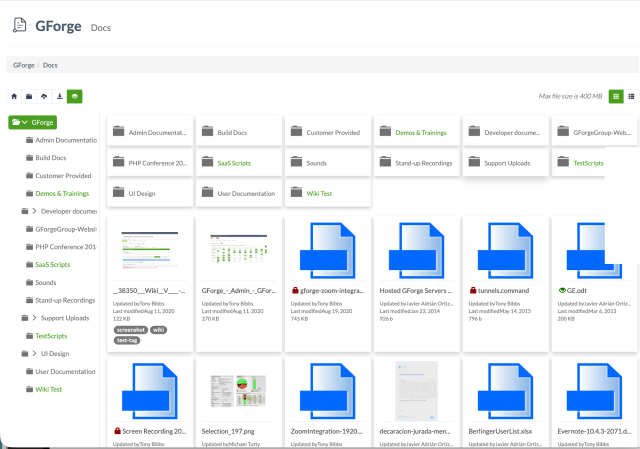
Real content previews where they’ve been generated — a generic icon everywhere else, never a broken image.
An optional thumbnail service — its own Docker container, run alongside GForge — generates real previews for documents, spreadsheets, and images dropped into Docs, so a grid of files reads like a grid of files instead of a wall of identical icons. It’s opt-in infrastructure: skip it and Docs still works fine, just with generic icons standing in.
We didn’t build a worse Google Docs. We didn’t try.
Google Docs and Microsoft 365 already do real-time collaborative editing well. Rebuilding that inside GForge wouldn’t have made it better — just more limited. So Document Management doesn’t try: download a file, edit it in whatever tool you already use, upload the result as a new version. That’s exactly why versioning and locking matter as much as they do here — they’re what makes a download-edit-upload workflow actually safe to use, instead of a source of “which version is current?” confusion.
The fundamentals, done right
Monitor a File or Folder
Watch a folder and get notified when something inside it changes — turn it off with the same one-click “Stop Monitoring” you used to turn it on.
Download History
Every file keeps a real log of who downloaded it and when — useful the moment you need to know whether a sensitive document actually went out.
Free-Text Tags
Tag a file with whatever keywords make it findable — tags feed directly into search, independent of where the file happens to be filed.
Give project documents a real home.
Start free, or talk to an engineer about migrating your existing files over.