Change Password Page
Page Overview
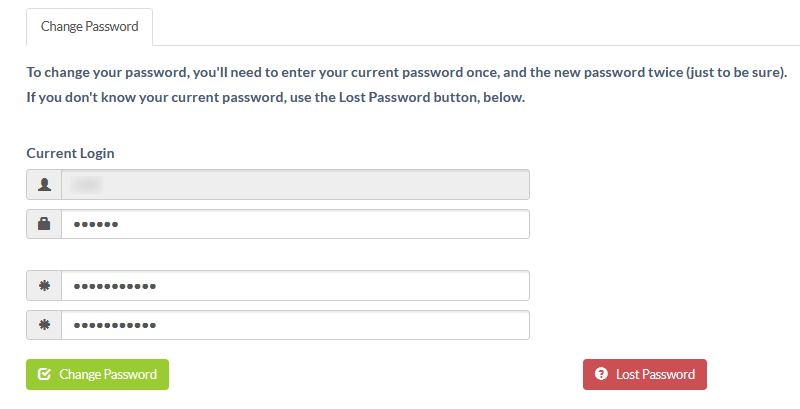
The Change Password page allows users to update their account password within the GForge system. This page provides a secure interface for users who know their current password and want to change it to a new one. The page is designed with security best practices in mind, requiring users to authenticate with their current password before allowing them to set a new one.
The page follows a straightforward workflow: users must first confirm their identity by entering their current username and password, then specify their desired new password twice to ensure accuracy. The double entry of the new password helps prevent errors that could result in users being locked out of their accounts due to typos.
The interface is clean and user-friendly, with clear instructions explaining the process. Input fields are properly labeled and include visual icons to help users quickly identify what information is required in each field. The username field is pre-populated and read-only, showing the currently logged-in user's username to provide context and prevent confusion.
For users who have forgotten their current password, the page includes a convenient "Lost Password" option that redirects them to the password recovery process. This ensures that users who cannot complete the standard password change process have an alternative path to regain access to their account.
The page includes form validation to ensure all required fields are completed before submission. The layout is responsive and works well across different screen sizes, making it accessible to users on various devices.
UI Elements
-
Change Password Tab: Located at the top of the form, this active tab indicates the current page and distinguishes it from other user account management options.
-
Instructions Text: Two informational paragraphs below the tab that explain the password change process and direct users to the Lost Password option if needed.
-
Current Login Section Header: A heading that introduces the section where users enter their current login credentials.
-
Username Input Field: A read-only text field with a user icon that displays the current user's username. Located in the upper portion of the form.
-
Current Password Input Field: A password field with a lock icon where users enter their existing password. Positioned directly below the username field.
-
New Password Input Field: A password field with an asterisk icon where users enter their desired new password. Located in the middle section of the form.
-
Confirm New Password Input Field: A second password field with an asterisk icon where users re-enter their new password for verification. Positioned directly below the new password field.
-
Change Password Button: A green primary button with a checkmark icon located in the lower left area of the form. Submits the password change request when clicked.
-
Lost Password Button: A red button with a question mark icon positioned in the lower right area of the form. Provides access to password recovery functionality for users who have forgotten their current password.