GForge 26.1 Released
The wiki, rebuilt. AI that works where you do. Webhooks that go where you need them.
One Markdown editor across the whole product, Flow AI generally available on SaaS and self-hosted, and an event system that tells the rest of your toolchain what just happened.
One Markdown editor, everywhere your team writes
The wiki’s editor now also powers project and site-admin homepages and sprint retrospectives, and the old rich-text editor is gone from GForge. Existing pages keep displaying correctly. Built on the same foundation, the wiki gains the collaboration features teams kept asking for.

Someone saved while you were typing? GForge tells you instead of quietly overwriting their work.
Two editors, no lost work
If two people edit the same page, the second save is warned about the conflict instead of silently replacing the first. The same protection covers ticket notebooks, personal notebooks, the API, the CLI and Flow.

Tags sit right on the page and feed search.
Tag pages, then find them
Tag any wiki page, and a search for a word also finds pages tagged with it, even when the page text never mentions it. Full-text search inside page content has been fixed along the way.

Filter by author and date range, then sort.
A search built for the wiki
The wiki has its own search and filter panel: page name, text, author, created and updated dates. Choose whether to match only a page’s latest version or any version in its history.

A real diagram, rendered live from text in the page.
Diagrams, math and code that read like documentation
Mermaid diagrams and KaTeX math render right in the page, and code blocks get syntax highlighting with line numbers. Long pages can use collapsible sections.
PDF and DOCX downloads
Download any wiki page, or a specific version, as a PDF or Word document.
Safe page rename
Rename a page and every link that points to it is updated in the same step: all of it, or none of it.
Attachments
Attach PDFs, Word documents and other files to a wiki page.
@-mentions
Mention teammates right in a wiki page, the same way you do in tickets and chat.
Summary of changes
Add a short summary to every save, so version history explains itself.
Better version history
The diff on the Versions tab works again, and edits show up on the View tab without a reload.
A notebook for you, and one on every ticket
Personal and ticket notebooks share the wiki’s editor, version history, conflict detection and page rename.
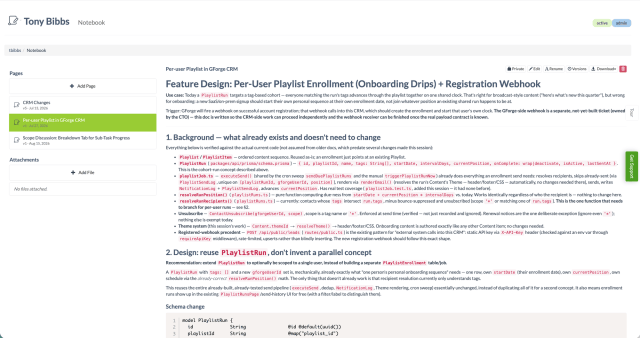
Your notebook: private by default, with versions, rename and download.
A private place to think, with the wiki’s tools
Draft designs, keep research and write things down before they are ready to share. Pages are private by default, and each one has version history, rename and download. Make a page public when you want to share it by link.
Your Personal Notebook →Personal notebooks
Every user now has a notebook for their own pages. Pages are private by default, and the owner can make a page public and share its link.
Your Personal Notebook →Ticket notebooks, extended
Search notebook pages by name and content, see page activity in the ticket timeline and in chat, and link straight to a specific page.
The Notebook Tab →Flow AI is generally available
Flow is out of experimental and runs on SaaS and self-hosted installs. It works with your tickets, wiki and notebook pages, tags, stand-up and activity data, and it stays current as your content and project permissions change.

Off until you turn it on, per project, with the provider and key you choose.
You choose the provider, and where it runs
Configure an AI provider, model and API key once in Site Admin to make Flow available to every project, or per project in Project Admin. Nothing runs until an administrator enables it.
Site-level settings →
The AI tab sits next to a transition’s other settings.
AI on any workflow transition
Attach a prompt to a transition and the AI request runs when a ticket makes that move, as the person making the transition, with the ticket as context. We use it to give every pull request a first-pass review.
Project-level configuration →Just @gforge it
Mention @gforge in a ticket follow-up or in chat and Flow replies in place.
More it can do
Flow can look up tickets, users, projects and wiki pages, create and update wiki and notebook pages, and work with tags and stand-up data. It can take up to 40 steps on a single request.
Tidy by default
Flow topics expire after 30 days of inactivity (administrators can change that), and pinned topics are kept.
Tell the rest of your toolchain what just happened
Subscribe to events in GForge and have each one call a webhook, send an email, or run an AI prompt. Administrators manage subscriptions in Site Admin and Project Admin.
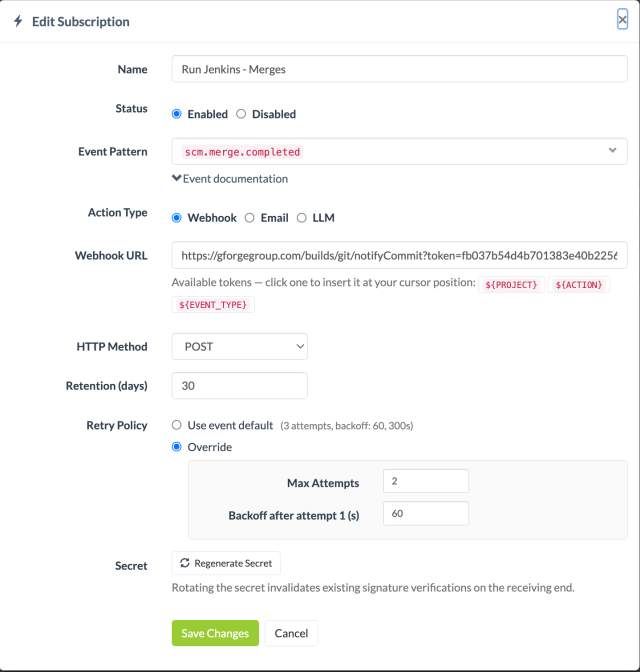
A real subscription: every completed merge starts a Jenkins build.
One subscription, three actions
Pick an event, then a webhook call, an email, or an AI prompt. Webhook subscriptions can be limited to specific events and signed with a secret so receivers can verify them.
Project Admin: Webhooks →
Every delivery is logged with its response and payload.
Nothing disappears silently
Failed deliveries are retried automatically with backoff, and the delivery log records each attempt, so you can see what was sent and how the receiver answered.
Site Admin: Webhooks →Tickets and wiki
Created, updated, commented on, assigned, status changed, deleted; wiki pages created, updated and deleted.
Source and builds
Pushes, commits, merges, and branch and tag changes; build succeeded and build failed.
Releases, documents, forums, accounts
File release packages and releases, documents, forum messages, and account confirmation.
Chat that keeps up with how you work
Statuses
Set yourself online, busy or offline so teammates know whether to expect an answer.
Markdown and commit links
Chat messages support Markdown, and a Git commit hash renders as a link to the commit.
Better mentions
Mentions list users reliably and filter without lag, and ticket links keep their previews to a sensible height.
Project Chat →And the details that add up
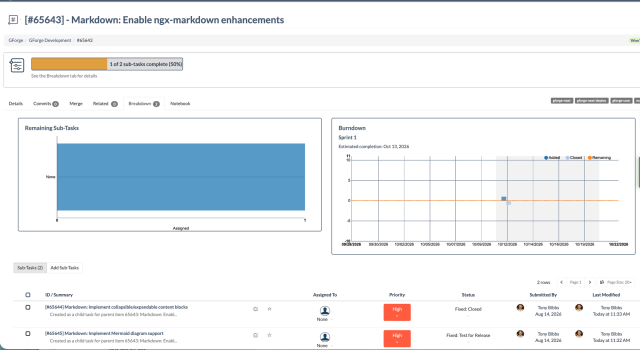
A ticket with two sub-tasks: progress, remaining work and burndown at a glance.
See how the work under a ticket is going
Tickets with children get a Breakdown tab with a progress bar, assignee and burndown charts, and the list of sub-tasks, so you can see what is left without opening each one.
The Breakdown Tab →Create tickets from the CLI
The GForge CLI can now create tracker items, alongside everything it already did in 26.0.
Japanese
GForge is now available in Japanese.
Force-push option
Project administrators can allow force-push from SCM settings.
Easier to find on the web
Public projects are easier for search engines to find and understand.
Sturdier Git and downloads
Git LFS uploads over HTTPS and SSH work, and release downloads keep their real file names.
See it in real use
Real screenshots, real data, and the bugs we found along the way.
The GForge Wiki, Rebuilt
Real screenshots of tags, search, attachments, rename and conflict handling.
Read the post →We Taught GForge to Review Our Code Before We Do
An AI first pass on every pull request, attached to a workflow transition.
Read the post →See GForge’s Webhooks in Action
One real merge, one real build, and the delivery that connected them.
Read the post →How We Actually Use GForge’s AI-Native CLI Every Day
Five real examples of the CLI and MCP server in daily engineering work.
Read the post →Introducing gforge-cli
GForge from your terminal: tickets, branches and raw API access.
Read the post →GForge 26.1 is available now
Download GForge, read the full release notes, or ask our AI assistant anything about the release.